Configuration of Noctule#
Build Settings#
There are two types of build settings:
- Default Settings for your project
- Directory Settings for a specific directory
If a directory does not have custom settings, then the project settings are used.
Project Build Settings#
The build settings are available at Preferences → Build, Execution, Deployment → Noctule, the Swift IDE. The directory settings are available in the nested setting Directory Settings.
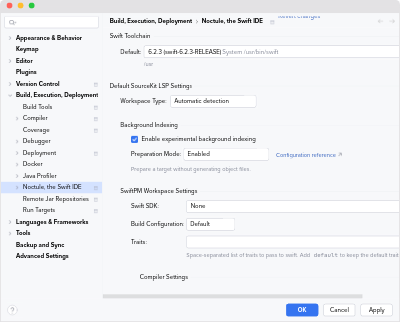
- Swift Toolchain
- The Swift toolchain used for the project. It provides most of the editor features (via SourceKit-LSP), builds the project, and serves as the default for run configurations. Directory settings do not allow overriding this setting.
- Default SourceKit-LSP Settings
- The default settings used for Swift projects. If no custom settings are defined for a directory, then these settings are used as a fallback. Please refer to the explanations of the directory settings to learn more about the available settings.
Directory Build Settings#
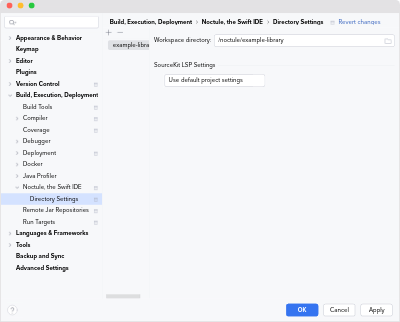
By default, each detected Swift PM project directory is shown at Preferences → Build, Execution, Deployment → Noctule, the Swift IDE → Directory Settings.
The list of directories defines the workspace of the Swift Language Server.
On the left, you can select the directory to configure.
On the right, you can configure the build settings for this directory.
The settings are synced with the SourceKit configuration file .sourcekit-lsp/config.json inside the directory.
- Use default project settings:
- Choose whether to use the default project settings or to define custom settings for this directory.
If you choose “Use default project settings”, then
.sourcekit-lsp/config.jsonwill be deleted.If you choose “Apply custom settings”, then
.sourcekit-lsp/config.jsonwill be created or updated with the settings defined in the user interface.
Directory Settings Details#
- Workspace Type
- The workspace type to assume for this directory.
- Automatic detection: Let SourceKit-LSP detect the workspace type.
- Build server: Use a build server to build the project.
This needs an additional configuration file in the
.bspdirectory inside the workspace root. Noctule currently does not provide support for build server settings. - Compilation database: Use a compilation database to build the project.
This needs an additional configuration file
compile_commands.jsonorcompile_flags.txtinside the workspace root directory. - Swift PM: Use
swiftto build as a Swift Package Manager project. This needs aPackage.swiftfile inside the workspace root directory.
Background Indexing#
- Enable experimental background indexing
- Tells SourceKit-LSP to index the project in the background. With Swift 6.1 or later, it’s recommended to enable this and keep the default preparation mode of “Enabled”. Please refer to the documentation if you need more details.
- Preparation Mode
- How much work SourceKit-LSP does to prepare a target before it indexes it.
- Enabled: Prepare a target without generating object files. This is the default and does the least work.
- Without lazy checking: Prepare a target without generating object files, but without lazy type checking and function body skipping. Uses SwiftPM’s
--experimental-prepare-for-indexing-no-lazyflag. - Build: Build a target to prepare it. The most expensive option, but the one closest to a regular build.
SwiftPM Workspace Settings#
- Swift SDK
- The Swift SDK to use for this workspace. This is helpful for cross-platform development.
The available options are retrieved from the Swift toolchain via
swift sdk list. Available SDKs are listed on the Swift website. - Build Configuration
- The options
DebugandReleaseallow overriding the default build configuration of the workspace. - Traits
- Space-separated traits that are passed to the
swiftcommand via the--traitsoption. If this option is set, then the default traits are ignored unless you adddefaultto this list.
Compiler Settings#
These settings override the defaults of the Swift, C and C++ compilers, and of the linker.
General Settings#
Noctule’s general settings are located at Preferences… → Languages & Frameworks → Swift (Noctule).
Actions on Save#
- Enable format on save
- Enable this setting to reformat Swift files when you save them to disk with the action File → Save all or its shortcut. Because many projects use external formatters like SwiftFormat or
swift format, this quickly brings a file to the expected code style. - These are the same settings as Tools → Actions on Save → Run external Swift formatter.
- Formatter
- Choose the formatter you would like to run when a file is saved.
- Swift Toolchain
- SwiftFormat
- SwiftLint
- Please refer to external code formatters for further details.
SwiftLint#
Configures when SwiftLint is executed and which binary is used.
- Status
- Controls when SwiftLint is executed in a project.
- Enable always
Run SwiftLint for editor diagnostics and format on save, if enabled. - Enable only with .swiftlint.yml files
Execute SwiftLint only if a configuration file is found in the directory of a Swift file or in one of its parent directories. - Disable
Never execute SwiftLint.
- Enable always
- Executable
- By default, the
swiftlintexecutable is looked up in the configured$PATH. If Noctule is unable to locate it, or if you would like to use a specific version, choose the path to theswiftlintbinary.
SwiftFormat#
Configures when SwiftFormat is executed and which binary is used.
- Status
- Controls when SwiftFormat is executed in a project.
- Enable always
Run SwiftFormat for editor diagnostics and format on save, if enabled. - Enable only with a .swiftformat file
Execute SwiftFormat only if a configuration file is found in the directory of a Swift file or in one of its parent directories. - Disable
Never execute SwiftFormat.
- Enable always
- Executable
- By default, the
swiftformatexecutable is looked up in the configured$PATH. If Noctule is unable to locate it, or if you would like to use a specific version, choose the path to theswiftformatbinary. - Configuration file
- Specifies the configuration file to use for SwiftFormat, either as an additional configuration or as the only one controlling the formatting.
- Swift version
- The version of the Swift toolchain passed on the
swiftformatcommand line. By default, it’s the version of the configured Swift toolchain.
Telemetry#
This setting controls whether the optional telemetry of Noctule may be sent. It’s turned off by default. Please refer to Noctule’s privacy policy to learn what is and is not sent when the setting is turned on.
Code Style Settings#
The code style settings for Noctule’s Swift and Objective-C support are located at Preferences… → Editor → Code Style → Swift (Noctule) and Preferences… → Editor → Code Style → Objective-C / C (Noctule).
Color Scheme Settings#
The settings to configure the highlighting of Swift and Objective-C files are found at Preferences… → Editor → Color Scheme → Swift (Noctule) and Preferences… → Editor → Color Scheme → Objective-C / C (Noctule).