Debugging Swift and Objective-C#
Paid feature Since Noctule 4.0
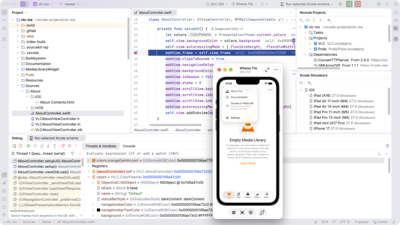
Noctule integrates a debugger for Swift, Objective-C and C into the debugger of your IDE.
It’s based on lldb-dap, the debug adapter of LLDB, which is part of the Swift toolchain.
You debug Swift code in the same way as other languages in your IDE:
set breakpoints, step through your code, and inspect variables in the Debug tool window.
Please refer to the JetBrains Help to learn the basics of the IDE’s debugger.
The debugger is new in Noctule 4.0. If something doesn’t work as expected, please report it on GitHub.
Requirements#
- A Noctule license or an active trial.
- A Swift toolchain that contains
lldb-dap. Any recent Swift toolchain should have it.
Starting a Debug Session#
Every run configuration of Noctule, except build-only configurations, can be started with the debugger:
- Swift Package Run
- Swift Package Test
- Xcode Simulator
- Xcode Test, on the Mac and in a simulator
Run configurations that only build, e.g. “Swift Package Build” and “Xcode Build”, can’t be debugged.
Start a debug session in one of these ways:
- Select the run configuration and click “Debug” in the main toolbar, or use Run → Debug….
- Click the run icon in the editor gutter next to a target in
Package.swift, a test or a test suite, and choose “Debug”. - In an Xcode project, choose “Debug” in the menu of the launch button of the Xcode toolbar, or click the “Debug” button of a simulator in the destination list.
- Choose “Debug” in the context menu of a target in the Noctule Projects tool window.
The program runs in a terminal of the debug session, so that you can see its output and type its input.
Breakpoints#
- Line breakpoints
- Click the editor gutter to stop at a line of Swift, Objective-C, C or a header file.
Line breakpoints support conditions, log messages and hit counts.
A breakpoint on a line with a macro, e.g.
#expect, stops at that line. - Inline breakpoints
- On a line with a Swift closure, you can choose to stop inside the closure instead of at the line.
- Exception breakpoints
- You can enable exception breakpoints for Swift and Objective-C to catch exceptions.
- Enable breakpoint type “Swift Throw” or “Objective-C Throw” in the breakpoint settings of your project at Run → View Breakpoints….
Inspecting the Program#
- Variables
- The values of variables are shown in the Variables view, in tooltips of the editor, and inline after the code that uses them. Numbers can also be shown as hexadecimal values.
- Readable values
- Values of types like
Decimal,DurationorTimeZoneare shown with a readable summary instead of their internal structure. On Linux and Windows, this covers many types of Foundation. “Show Readable Values” in the settings of a debug session turns this on and off. - Evaluate Expression and watches
- Run → Debugging Actions → Evaluate Expression… evaluates Swift or Objective-C code in the current frame. Code completion is available in the expression editor and in watches.
- View Memory
- “View Memory” in the context menu of a value shows its memory as a hex dump, which you can also edit.
- Frames and disassembly
- “Show Library Frames” hides or shows the frames of system libraries in the list of frames. “Jump to Source” opens the source of an instruction in the disassembly view.
- Crashes
- If the program crashes, e.g. with
SIGSEGV, the debugger stops and shows the reason for the crash.
LLDB Console#
The LLDB console runs LLDB commands in the current debug session, e.g. bt or p count.
Open it with “Show LLDB Console” in the toolbar of the debug session.
Restarting the Program#
“Restart Debuggee” restarts the program without ending the debug session.
Debugging Tests#
Tests of Swift Testing and XCTest can be debugged like any other program. Start “Swift Package Test” or “Xcode Test” with the debugger, or choose “Debug” at the run icon of a test in the editor gutter. The results of the tests are shown in the test tree while you debug them.
Settings#
The settings of the debugger are in Preferences → Build, Execution, Deployment → Debugger, in the section “Swift and Objective-C”.
- Show the LLDB console at the start of a debug session
- Opens the LLDB console when a debug session starts.
- Show values of types like Decimal, Duration or TimeZone with a readable summary
- Turns the readable values on or off for all debug sessions.
Debugger Actions#
In your debug panel, there are several actions available in your Noctule debug session.
- Show Debug Console
- Opens a new tab “LLDB” in the debug session view. It lets you interact with the lldb-dap process.
- Show DAP Messages
- Opens a new tab “DAP Messages” in the debug session view with the DAP messages exchanged with the lldb-dap process. This is usually only helpful for debugging problems of Noctule’s debugger integration.
Troubleshooting#
- lldb-dap couldn’t be started
- Make sure that the toolchain of the run configuration contains
lldb-dap. On Linux,lldb-dapneeds the Python library that the Swift toolchain was built with. Install it, or add its location to the environment variables of the run configuration, e.g.LD_LIBRARY_PATH=/path/to/python/lib. - Reporting a problem
- “Show DAP Messages” shows the messages exchanged between the IDE and
lldb-dap. Please attach them to your bug report.