Installation of Noctule#
Noctule is available as a plugin for JetBrains IDEs and Android Studio. To use all features, you need both the plugin and a Swift toolchain.
Installing the Plugin#
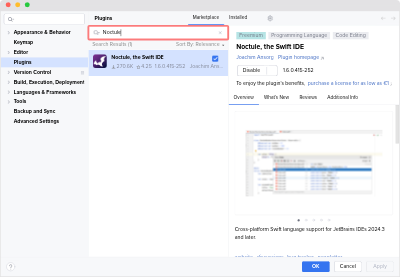
Noctule is available on the JetBrains Marketplace and can be installed from within the IDE.
To install the plugin, open Preferences → Plugins → Marketplace and search for “Noctule”. Click Install next to the plugin to install it. Restart the IDE if you are asked to do so.
Installation of a Swift Toolchain#
Noctule needs a Swift toolchain for most of its features. Basic features like syntax highlighting work without one.
By default, Noctule attempts to automatically detect all Swift toolchains available on your system. If the detection fails, you can add the location of a Swift toolchain manually.
Noctule works best with the latest version of Swift. Install version 6.2 or later.
Supported Toolchains#
Noctule needs an installed Swift toolchain to provide its full functionality. It detects toolchains managed by Swiftly or Xcode, as well as manually installed toolchains.
- Swiftly Toolchains macOS Linux
- Swiftly manages Swift toolchains on Linux and macOS. Swiftly does not support Windows yet, but if you open a project from Windows WSL, Swiftly toolchains are detected inside the WSL Linux system.
- Xcode Toolchains macOS
- The Swift toolchain bundled with Xcode is supported. If multiple Xcode installations exist, the Swift toolchain of each one is detected automatically.
- Manually Installed Toolchains macOS Linux Windows
- As a fallback, manually installed Swift toolchains are detected in
$PATH. - On Windows, the recommended installation method is the Windows Package Manager. Noctule detects the default installation location.
- User-Defined Swift Toolchains
- If the automatic detection fails, you can configure the toolchain location manually in the plugin settings.
To add a user-defined toolchain, go to Preferences → Build, Execution, Deployment → Noctule, the Swift IDE. Open the popup next to the dropdown of available Swift toolchains and click Add User-Defined Toolchain… .
A dialog opens where you can select the
swiftexecutable of the toolchain you want to use. Make sure thesourcekit-lspbinary is located in the same directory as theswiftexecutable you choose.
Next: First Steps with Noctule