Swift Project Management#
Noctule supports Swift Project Manager projects.
Creating a New SwiftPM Project#
To create a new Swift PM project, open the wizard with File → New Project… → Swift Package. Under the hood, Noctule executes swift package init to create the new project. The wizard provides a user interface to configure the settings passed to this command.
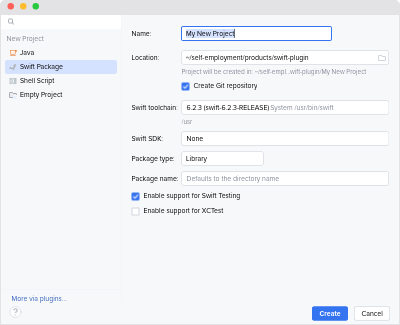
Options#
- Name
- The name of the project. It’s used by the IDE and is also serves as the default value for the package name input.
- Location
- The parent directory for the new project directory.
- Swift Toolchain
- Defines the default Swift toolchain for the new project.
It is also used to execute the
swiftcommand to create the new project. - Swift SDK
- Defines the default SDK for the new project. By default, no SDK is configured to use Swift’s defaults.
- Package Type
- The type of package to create. It’s passed as the value for
--typeofswift package init. - Package Name
- The name of the package. If defined, it’s passed as the value for
--nameofswift package init. - Enable support for Swift Testing
- Whether to enable support for Swift Tests.
If enabled,
--enable-swift-testingis passed toswift package init. Otherwise,--disable-swift-testingis passed. This option is grayed out if the selected Swift toolchain does not support it. - Enable support for XCTest
- Whether to enable support for XCTest.
If enabled,
--enable-xctestis passed toswift package init. Otherwise,--disable-xctestis passed. This option is grayed out if the selected Swift toolchain does not support it.
Opening a SwiftPM Project#
You can simply open the directory containing the Package.swift file in your IDE.
If you would like to work on several Swift projects at the same time, then open the parent directory containing all the projects.
Noctule will detect all Package.swift files inside the directory hierarchy and pass these directories to the Swift langauge server.
To work with a project on Windows WSL, the SourceKit LSP server must be launched on the WSL system. Open the project from the WSL filesystem, e.g.
\\wsl.localhost\Ubuntu\projects\my-project. Noctule detects Swift toolchains managed by Swiftly, which are located on the WSL Linux system, and launches the LSP server inside the WSL system.
Opening an XCode Project#
macOS onlyUsing XCode projects is not fully supported by Noctule. Only macOS is supported for the following workaround.
XCode projects are not officially supported yet. But there are workarounds to get at least basic support for Swift development.
xcode-build-server is used to integrate SourceKit LSP with an XCode project.
Under the hood, Noctule uses SourceKit LSP to support some of the IDE features.
You need to install xcode-build-server and then run it to create the necessary setting files for your project.
xcode-build-server config ... creates a buildserver.json file in the project directory, which is used by SourceKit LSP to launch the commands to work with an XCode project.
You have to run a full build of the project in XCode before running the
xcode-build-servercommand.
# only needed if you haven't installed xcode-build-server yet
brew install xcode-build-server

cd ~/projects/my-xocde-project

# Refer to https://github.com/SolaWing/xcode-build-server for more details.
# Run a build in XCode before running this command.
xcode-build-server config -workspace *.xcworkspace
# xcode-build-server config -project *.xcodeproj # alternative command
Now, you need to tell Noctule to treat the directory as a BuildServer project.